
To use your Cyber Circuit email on your phone or computer, you cannot use the “Automatic” setup. You must enter specific server settings manually. Follow this guide to connect to iPhone, Android, Outlook, or Thunderbird.
Step 1: Locate Your Manual Settings
Before opening your email app, you need to know your connection details. These are standard for all Cyber Circuit hosting accounts.
Username: Your FULL email address (e.g., info@yourdomain.co.za)
Incoming/Outgoing Server: mail.yourdomain.co.za
Incoming Port (IMAP): 993
Outgoing Port (SMTP): 465
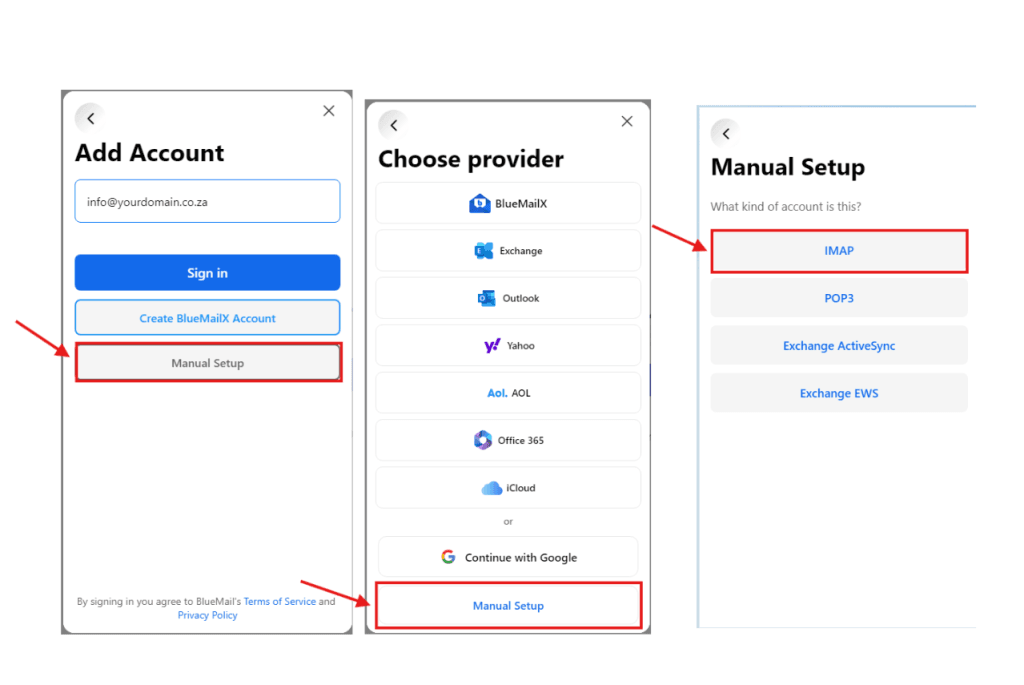
Step 2: Choose "Manual Setup" on Your Device
Open your email app (Outlook, Gmail, Apple Mail).
Select Add Account.
Enter your email address.
Important: Do not click “Continue” or “Google”. Look for an option that says Manual Setup, IMAP, or Other.
Step 3: Configure Incoming Server (IMAP)
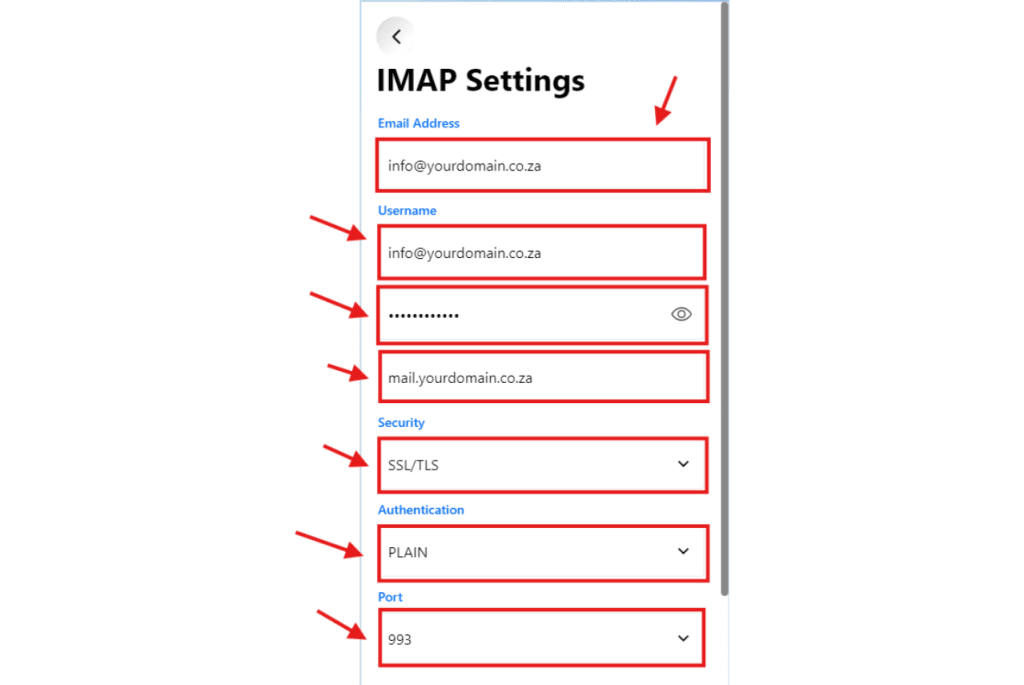
Enter the following details in the Incoming Server section:
Hostname / Server: mail.yourdomain.co.za
(Replace “yourdomain.co.za” with your actual website domain)Port: 993
Security Type: Select SSL or SSL/TLS
Step 4: Configure Outgoing Server (SMTP)
Depending on your app, you may need to click Next after entering the Incoming settings to see this screen, or simply scroll down.
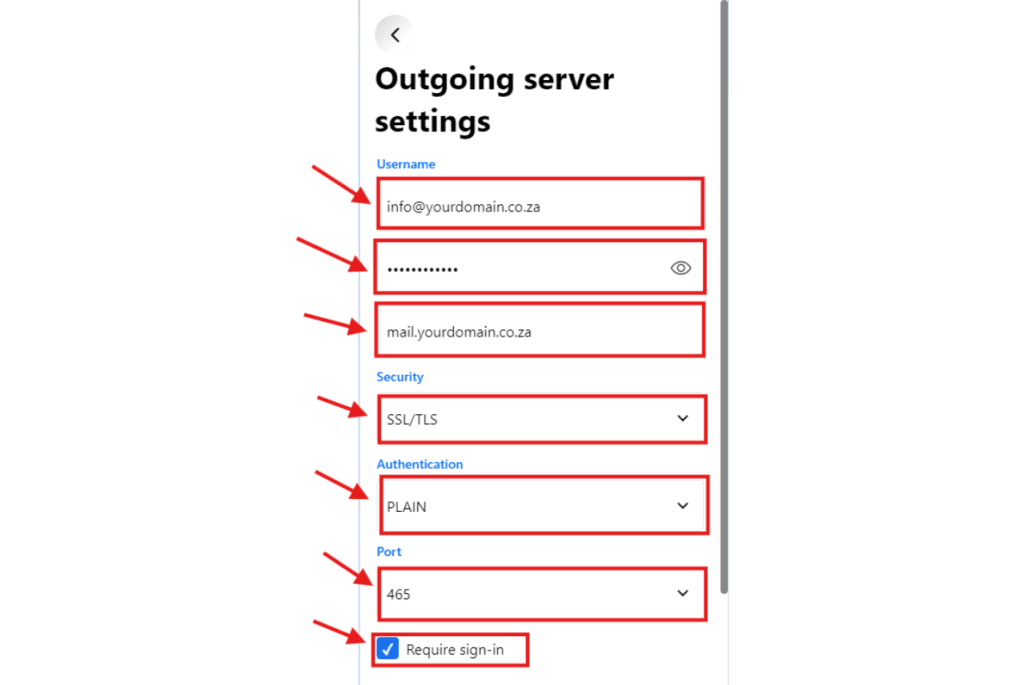
Enter the following details in the Outgoing Mail Server section:
Hostname / Server: mail.yourdomain.co.za
Port: 465
Security Type: Select SSL or SSL/TLS
Authentication: Ensure the toggle for “Require Authentication” is ON.
Step 5: Finalize and Test
Click Next, Save, or Done.
The app will test the connection.
Note: This might take a minute. Don’t close the app.
If you see “Verified,” “Success,” or your inbox loads, you are done!
If it fails:
Check that your Username is your full email address, not just your name.
Ensure your Password is correct. If you aren’t sure, you can view our how to reset email password guide here.