If a client hasn’t paid their invoice or is violating your terms, you can temporarily suspend their website. Here is how to do it (and how to bring them back online).
As a Reseller, you have the power to turn a client’s website “Off” (Suspend) and “On” (Unsuspend) instantly. When suspended, the website will show a generic error page and the client cannot log into cPanel.
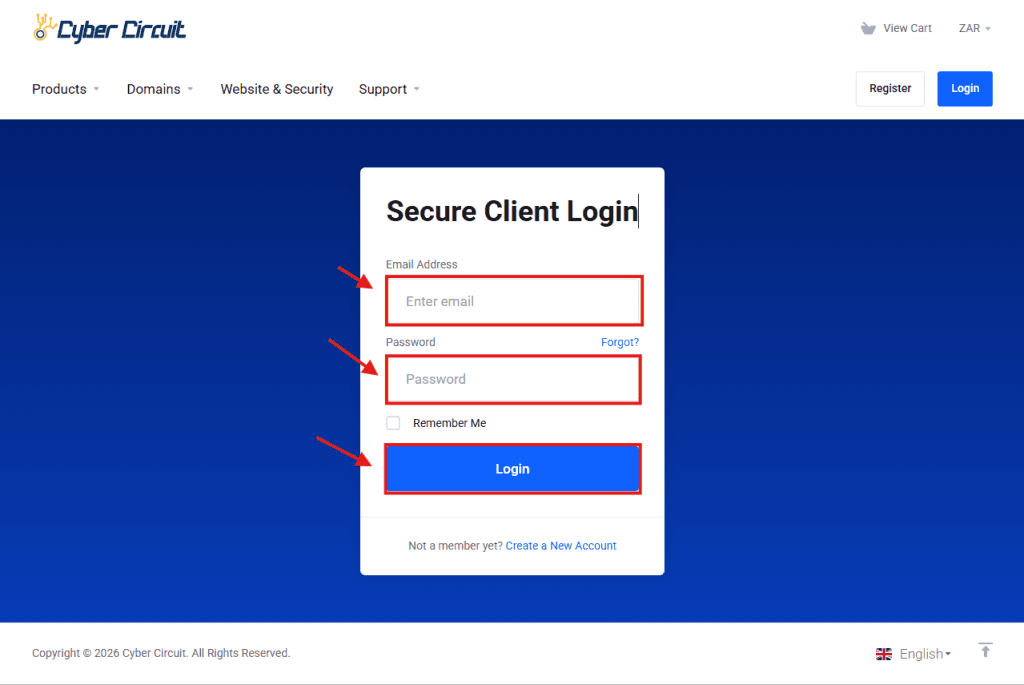
Step 1: Log Into Your Client Area
Go to the Cyber Circuit client area login page (https://cybercircuit.co.za/billing/).
Log in using your email address and password.
Step 2: Log Into WHM
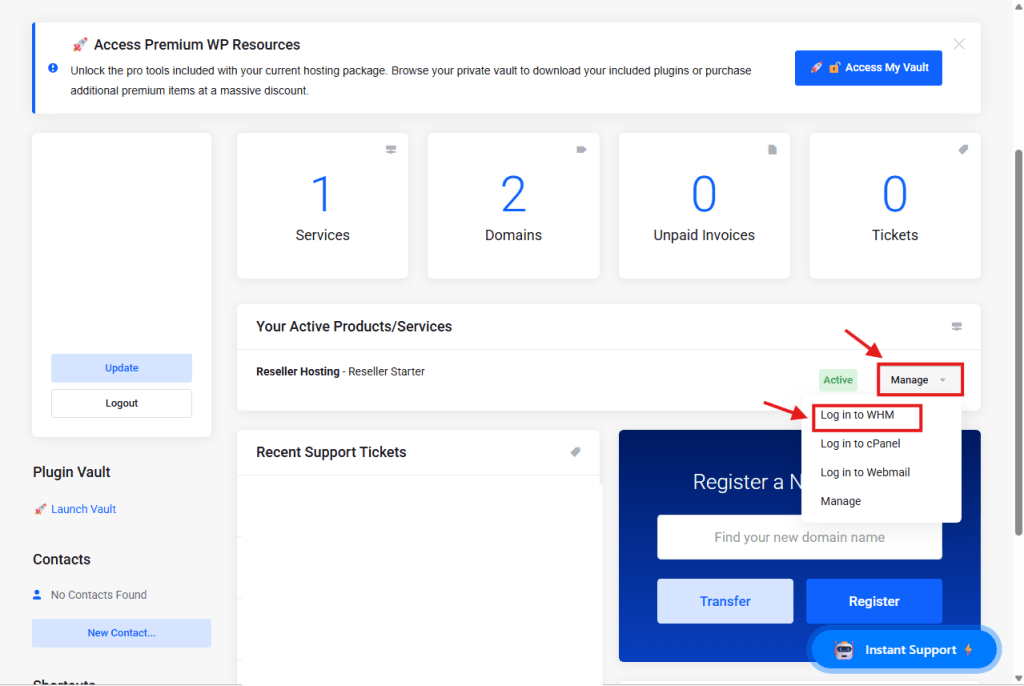
From your Client Area Dashboard, look for your active Reseller Service.
Click the Manage button (or dropdown).
Select Log in to WHM.
Step 3: Open "List Accounts"
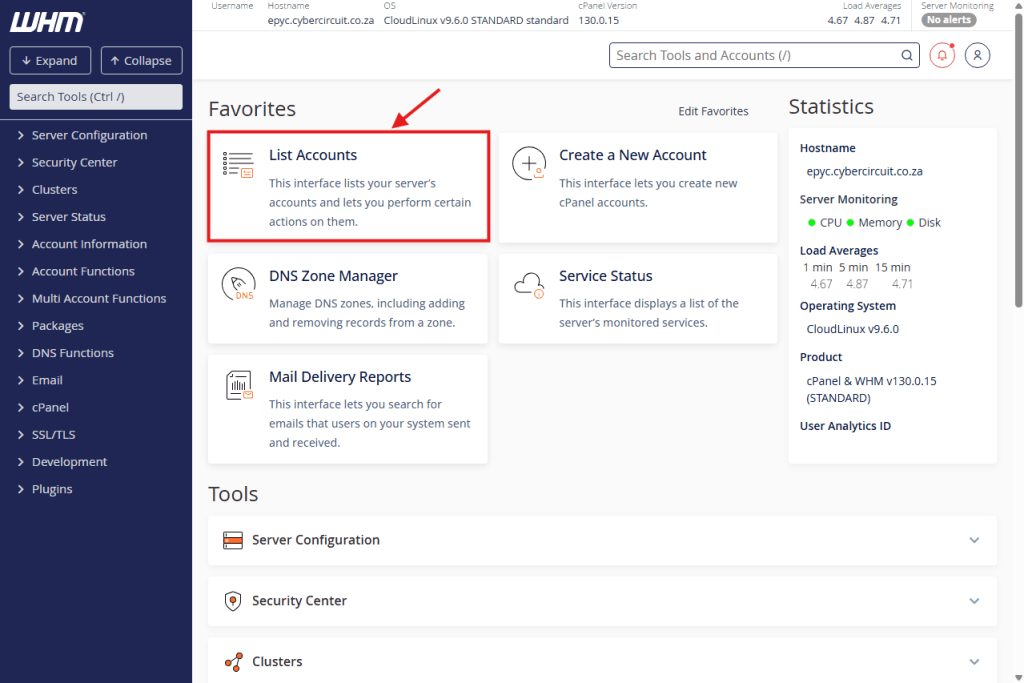
On the main WHM Dashboard, look for the Favorites section at the top.
Click on the tile labeled List Accounts.
Step 4: Find the Account
You will see a list of all your clients.
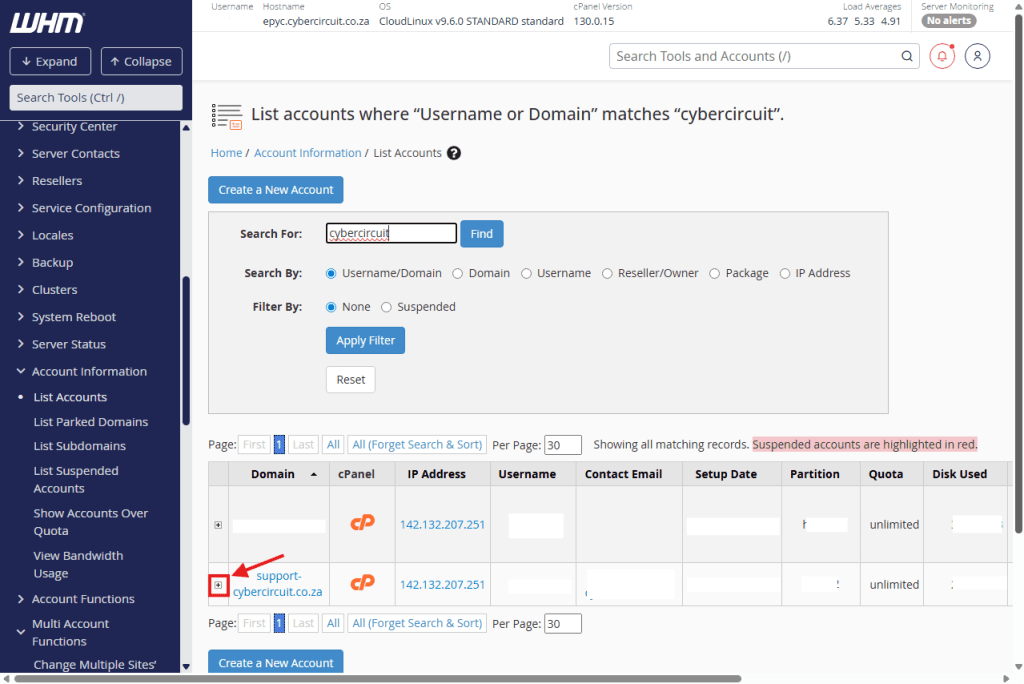
Find the domain you want to manage (you can use the search bar if you have many clients).
Click the small + (Plus) icon next to the domain name.
Step 5: Suspend (To Turn Off)
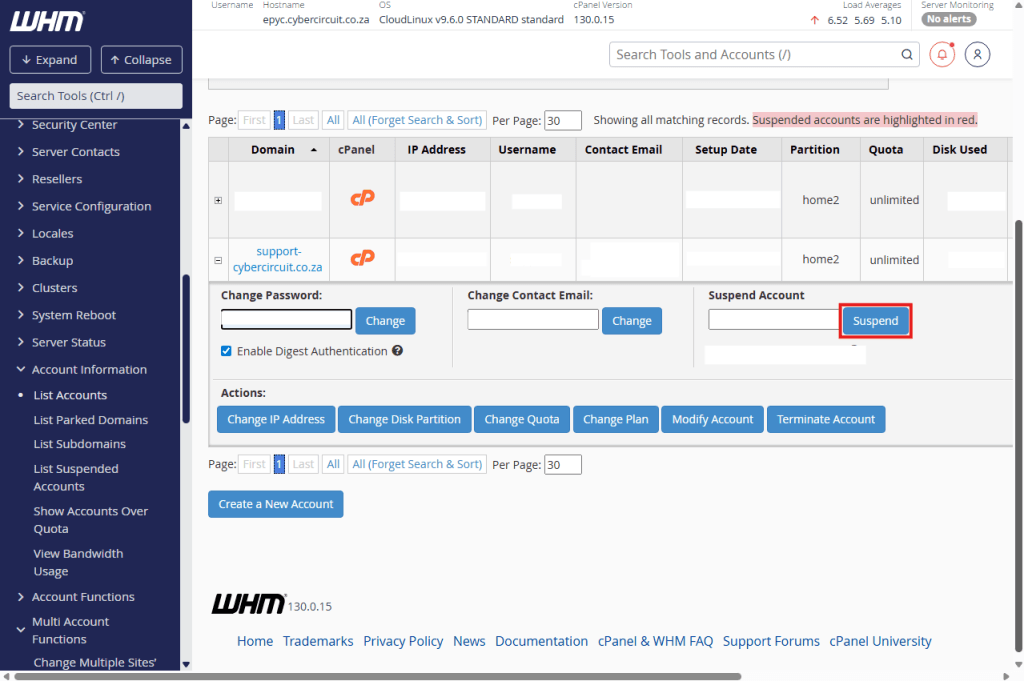
A menu will expand below the domain.
Look for the Suspend Account section on the right.
Reason: (Optional but recommended) Type a reason like “Overdue Payment”.
Click the red Suspend button.
Result: The row will turn red, indicating the account is offline.
Step 6: Unsuspend (To Turn On)
If the client has paid and you want to restore their site:
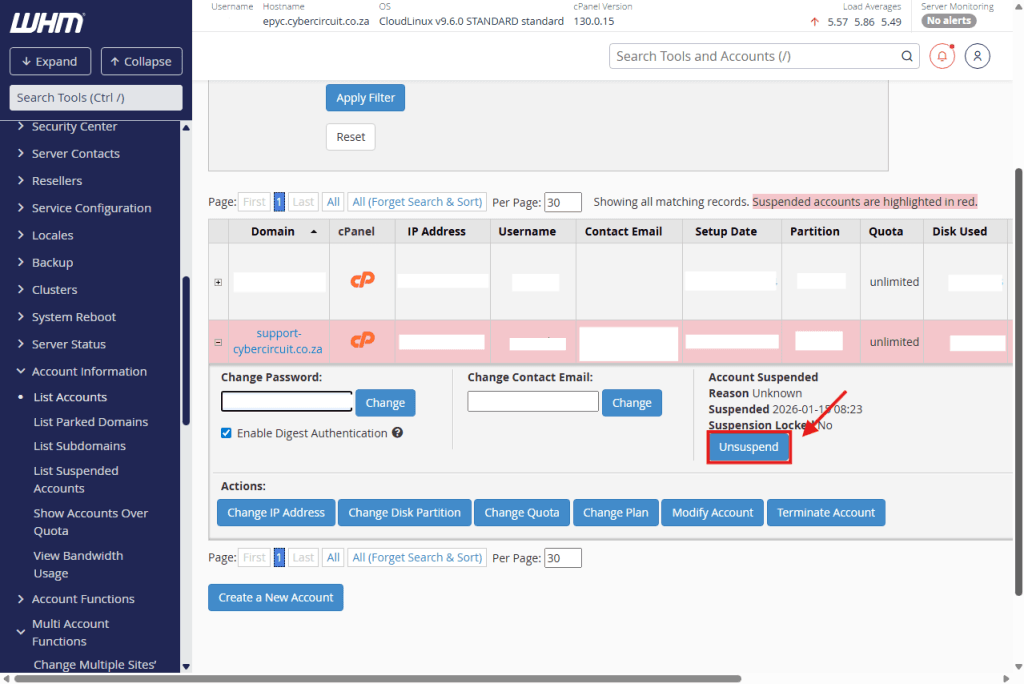
Find the suspended account in the list (it will be highlighted in red).
Click the + (Plus) icon to expand the menu again.
Click the Unsuspend button.
Result: The red highlight will disappear, and the website will go back online immediately.