
Your SSL certificate usually installs automatically. If you still see a “Not Secure” warning, follow these steps to check the status and force the installation.
At Cyber Circuit, we include free SSL certificates with all hosting packages. This usually installs automatically within an hour of your domain pointing to our servers.
However, if you have waited 24 hours and still see a “Not Secure” warning, it might be a caching issue on your computer, or the installation needs a manual push.
Step 1: Log Into Your Client Area
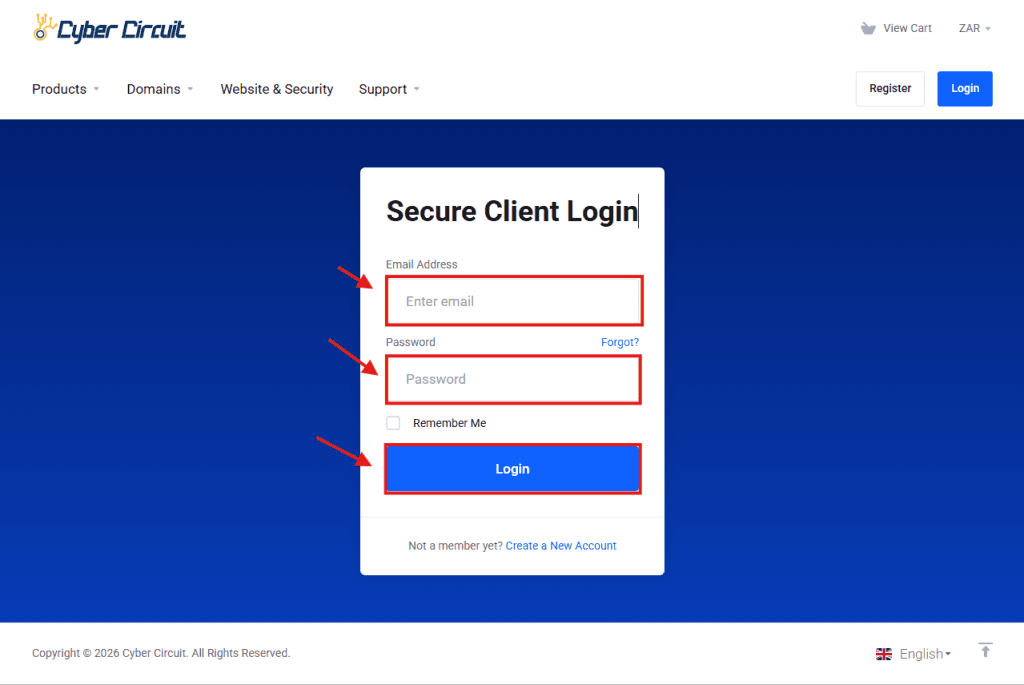
Go to the Cyber Circuit client area login page.
Log in using your email address and password.
Note: If you are struggling to log into your client area, view our guide here: How to Log Into Your Cyber Circuit Client Area.
Step 2: Log Into cPanel
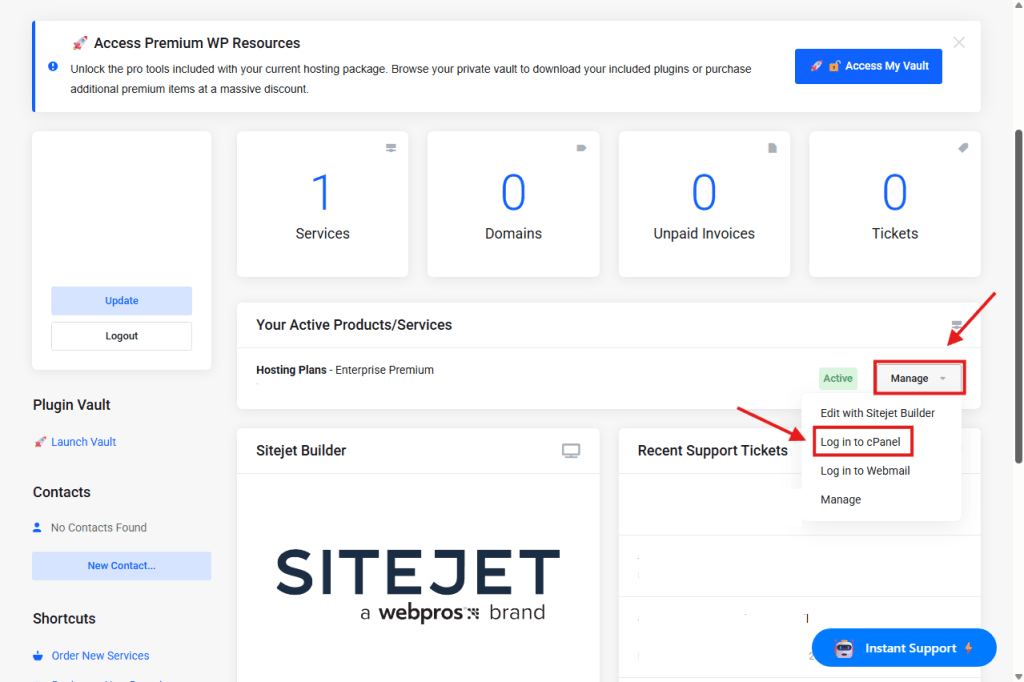
From your Client Area Dashboard, look for your active Products/Services.
Click the Manage button (or the dropdown arrow) next to your hosting package.
Select Log in to cPanel from the menu.
Step 3: Open "SSL/TLS Status"
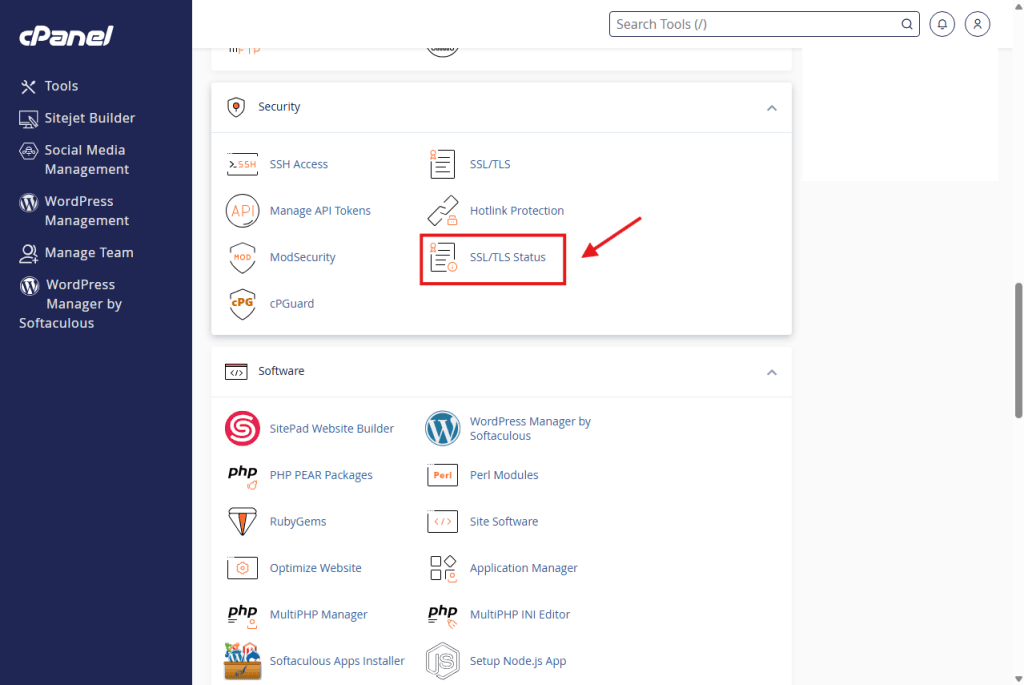
Once inside cPanel, scroll down to the Security section.
Click on the icon labeled SSL/TLS Status.
⚠️ Important: Do not click on the icon that just says “SSL/TLS”. You specifically need the one with the word “Status” at the end.
Step 4: Check Your Status (Is it Green or Red?)
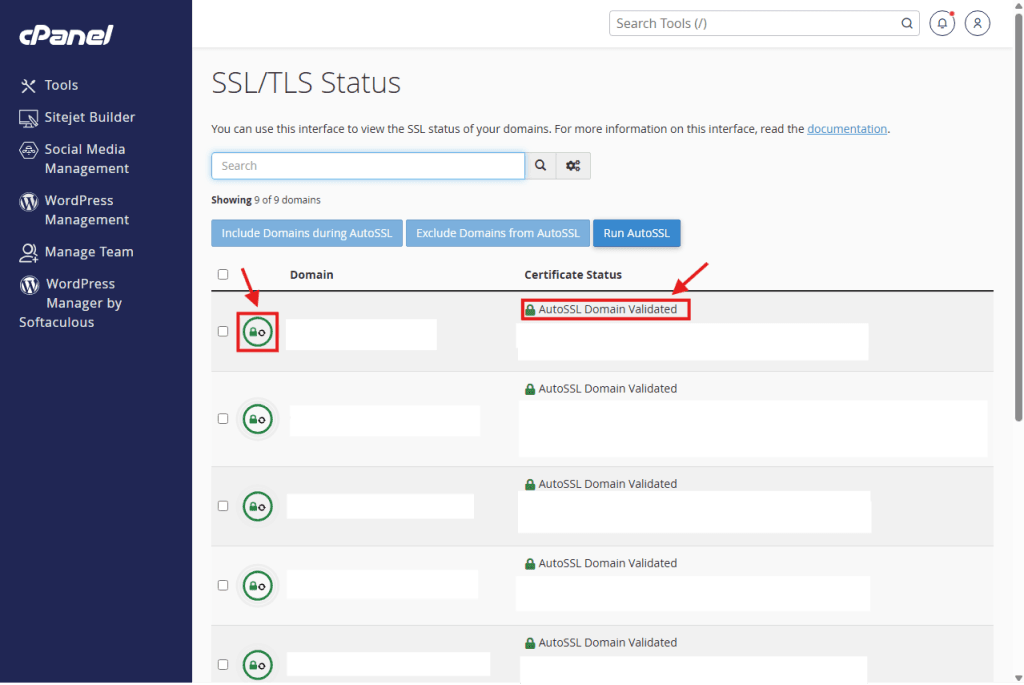
Look at the list of domains and check the color of the padlock icon on the left.
🟢 If the Padlock is GREEN:
This means your SSL is already active and working.
Why do I still see “Not Secure”?
Your browser is likely remembering the old version of the site.The Fix:
Open an Incognito Window (or Private Window) and check your site. If it says “Secure” there, the problem is just your browser cache.
Clear your browser cache or check on a different device (like your phone) to confirm.
🔴 If the Padlock is RED:
This means the SSL has not installed yet. Please proceed to Step 5 below.
Step 5: Run AutoSSL (For Red Padlocks Only)
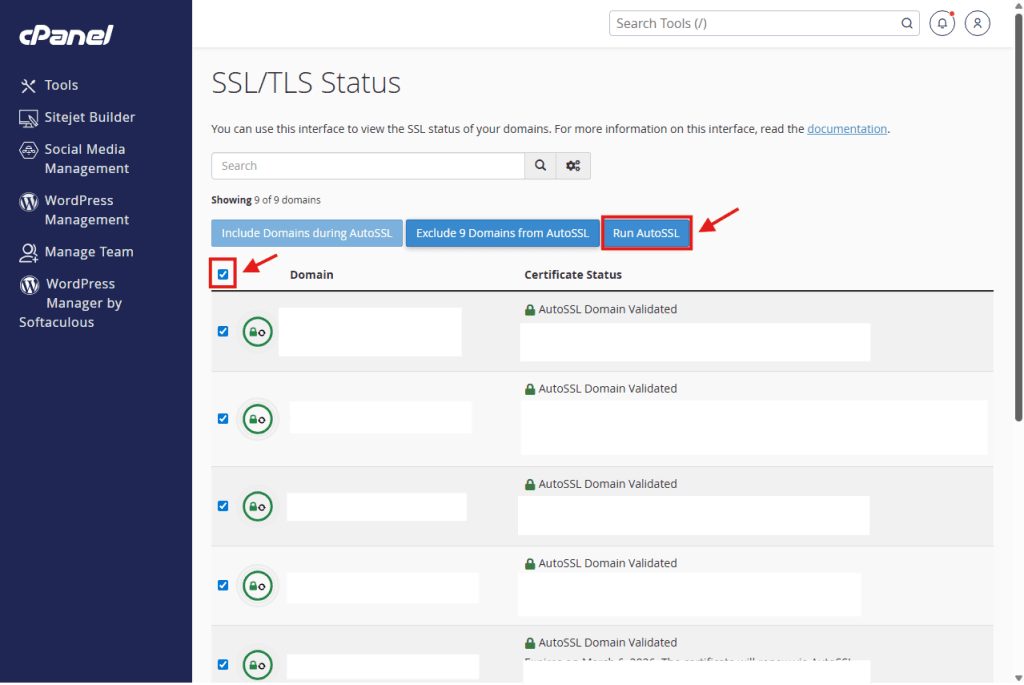
Click the checkbox at the very top of the list to Select All domains.
This ensures your mail servers and subdomains are also secured.
Click the blue button that says Run AutoSSL.
The page will load for about 1 to 5 minutes. Do not close the page.
When the page refreshes, the padlocks should turn Green.
Troubleshooting: Why is it still red?
If you clicked “Run AutoSSL” and it failed, the issue is almost always your DNS.
Check your Nameservers: Your domain MUST point to Cyber Circuit for the SSL to verify.
ns1.cybercircuit.co.za
ns2.cybercircuit.co.za
Wait for Propagation: If you just changed your nameservers today, it can take up to 24 hours for the system to see the change. Please wait and try again later.