
WordPress is the most popular platform for building websites. With Cyber Circuit hosting, you can install WordPress quickly using cPanel’s one-click installer — no technical knowledge required.
Step 1: Log Into Your Client Area
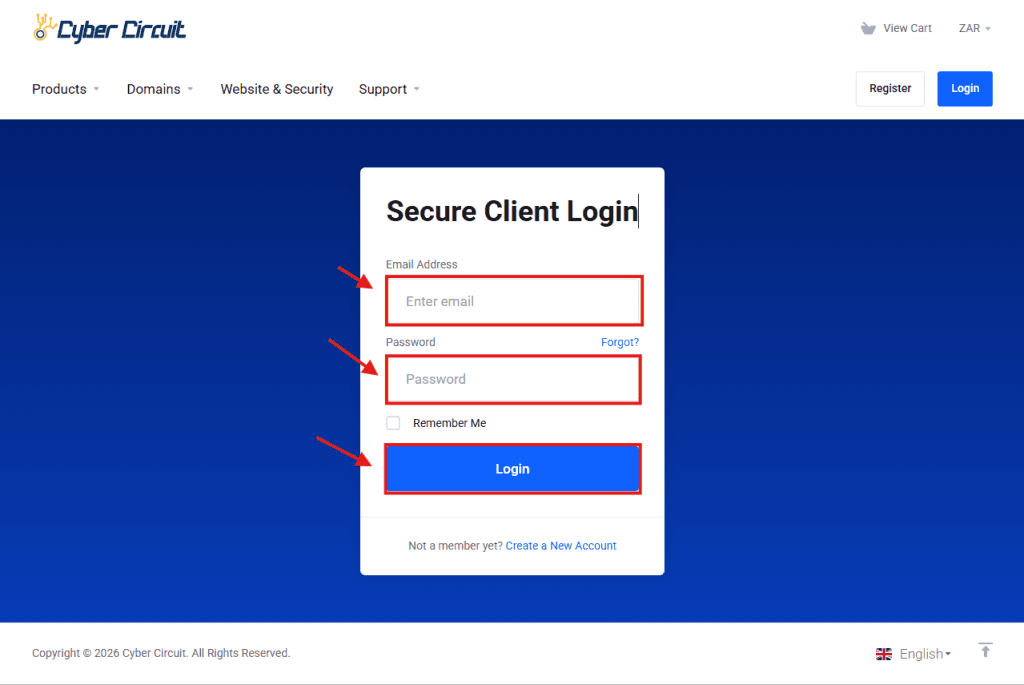
- Go to the Cyber Circuit Client Area (https://cybercircuit.co.za/billing/).
- Log in using your email address and password.
Step 2: Log Into cPanel
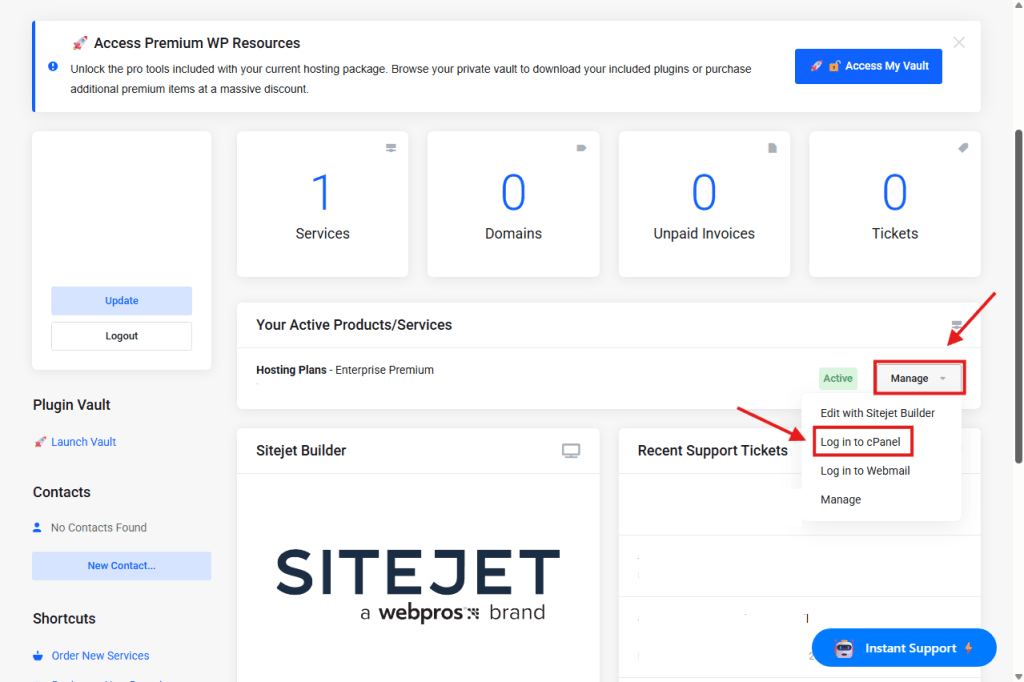
From your Client Area dashboard, go to Your Active Products/Services.
Click the Manage dropdown next to your hosting service.
Select Login to cPanel.
You will be logged into cPanel automatically — no additional username or password is required.
Step 3: Open the WordPress Installer
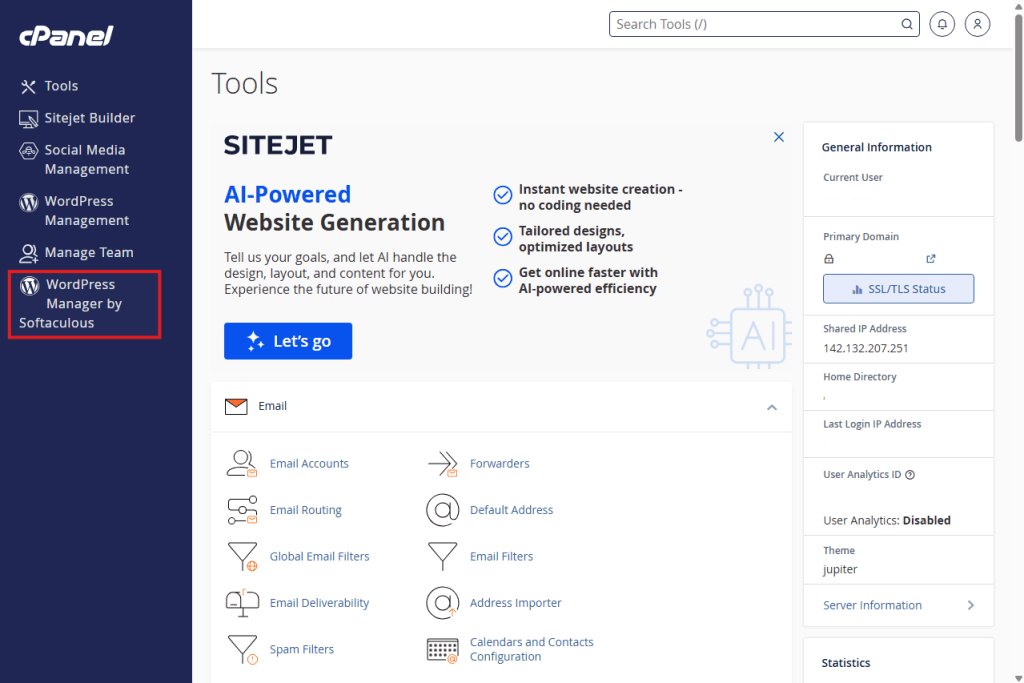
- Once you are logged into cPanel, look at the left-hand side menu.
- Click on WordPress Manager by Softaculous.
- This will open the WordPress installer, where you can install and manage WordPress on your website.
Step 4: Start the WordPress Installation
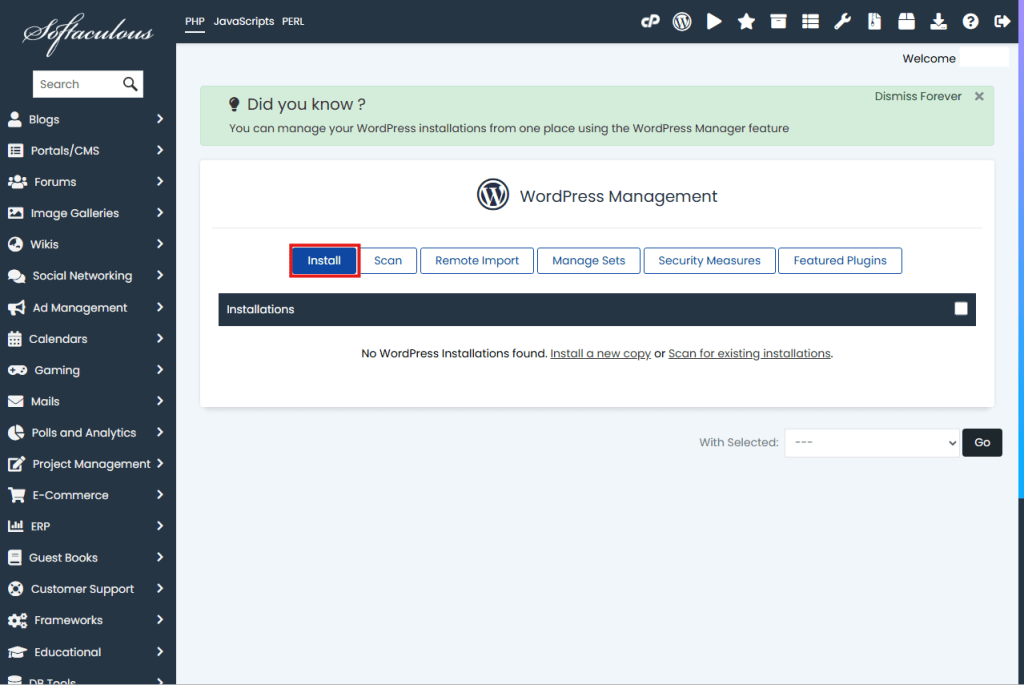
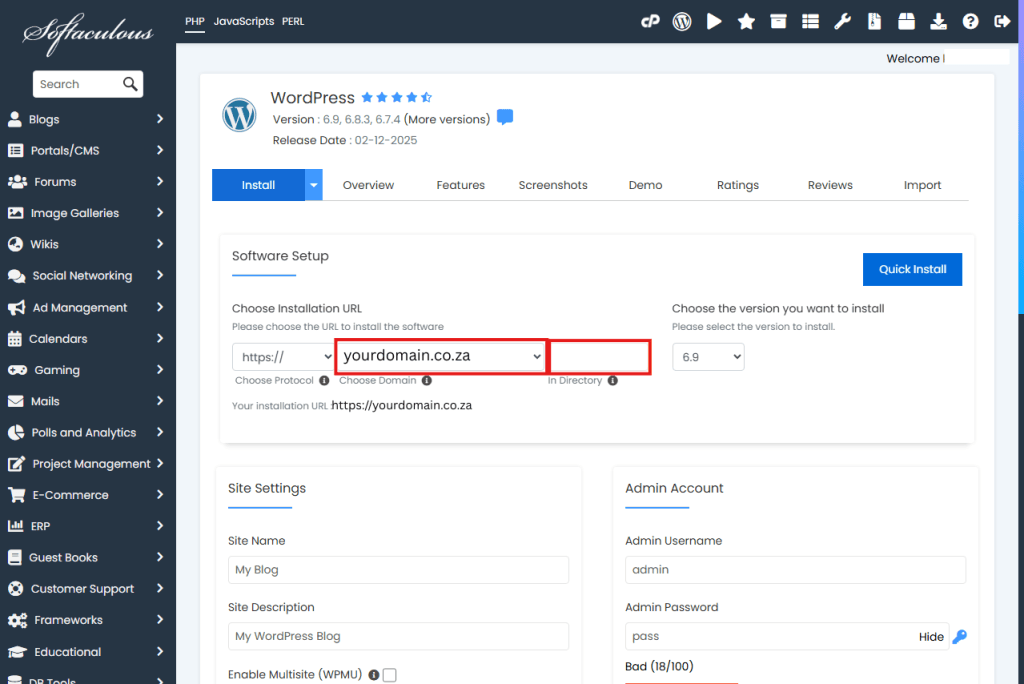
- Click the Install button.
- Choose the domain where you want WordPress installed.
- Leave the directory field blank if this is your main website.
(Leaving it blank installs WordPress on yourdomain.co.za)
Step 5: Set Your Website Details
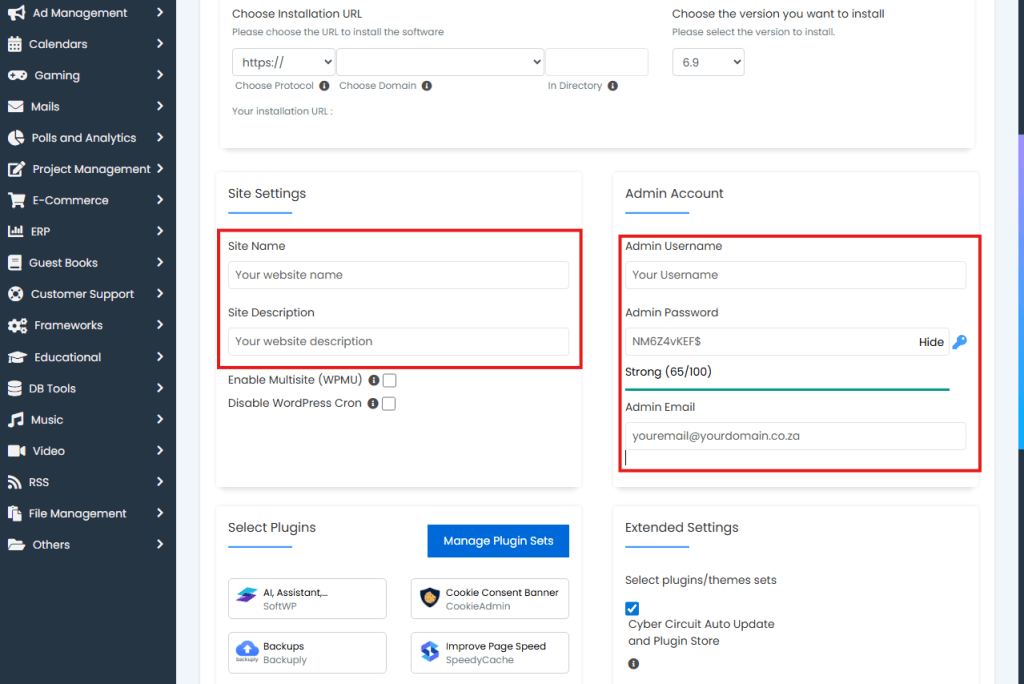
Fill in the following fields:
- Site Name (can be changed later)
- Site Description
- Admin Username
- Admin Password (store this safely)
- Admin Email Address
⚠️ Important: Do not forget your admin login details.
Step 6: Complete the Installation
- Click Install at the bottom of the page.
- Wait a few seconds while WordPress installs.
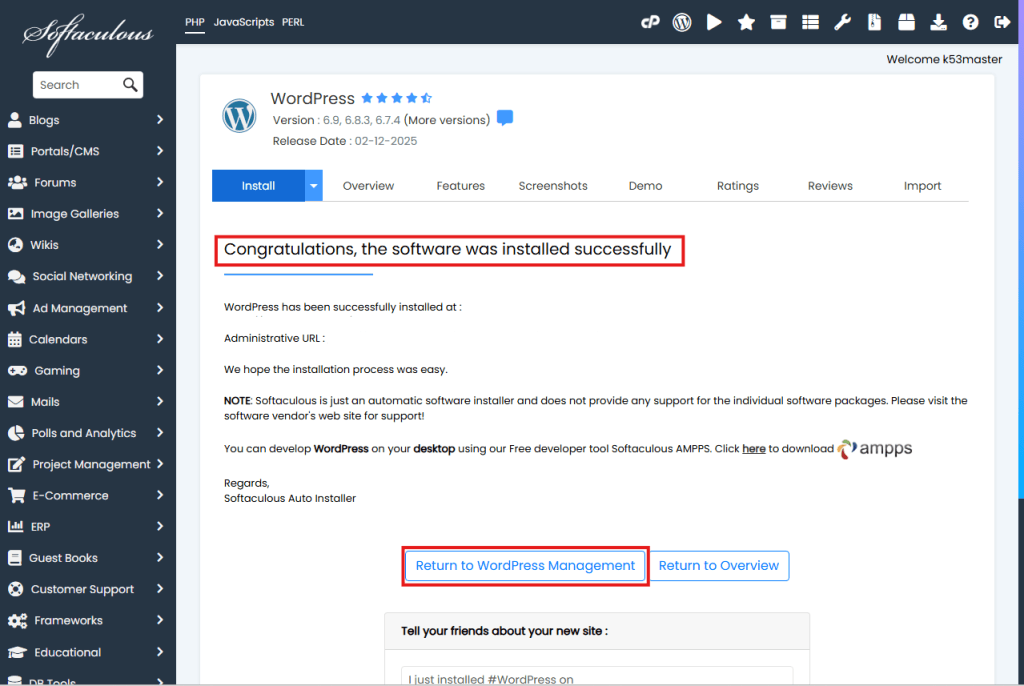
- You will see a success message once installation is complete.
- Click the Return to WordPress Management button on the success screen.
Step 7: Log Into Your WordPress Website
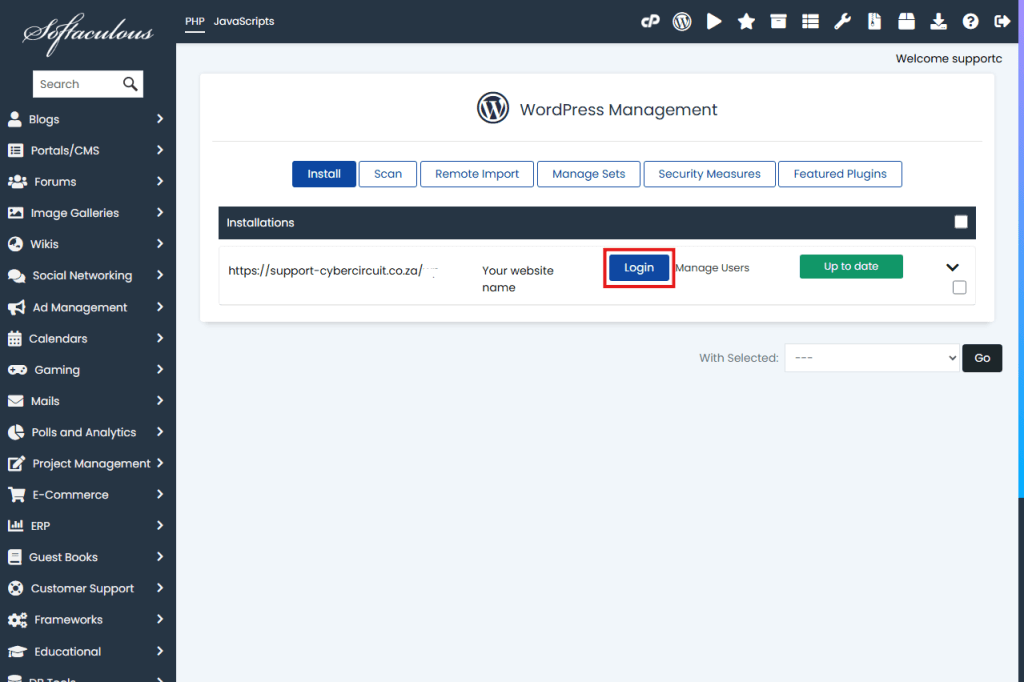
- On the WordPress management screen you will see your WordPress installation.
- Click the blue Login button to login to your WordPress dashboard.
✅ You’re all set!
Your WordPress website is now installed.