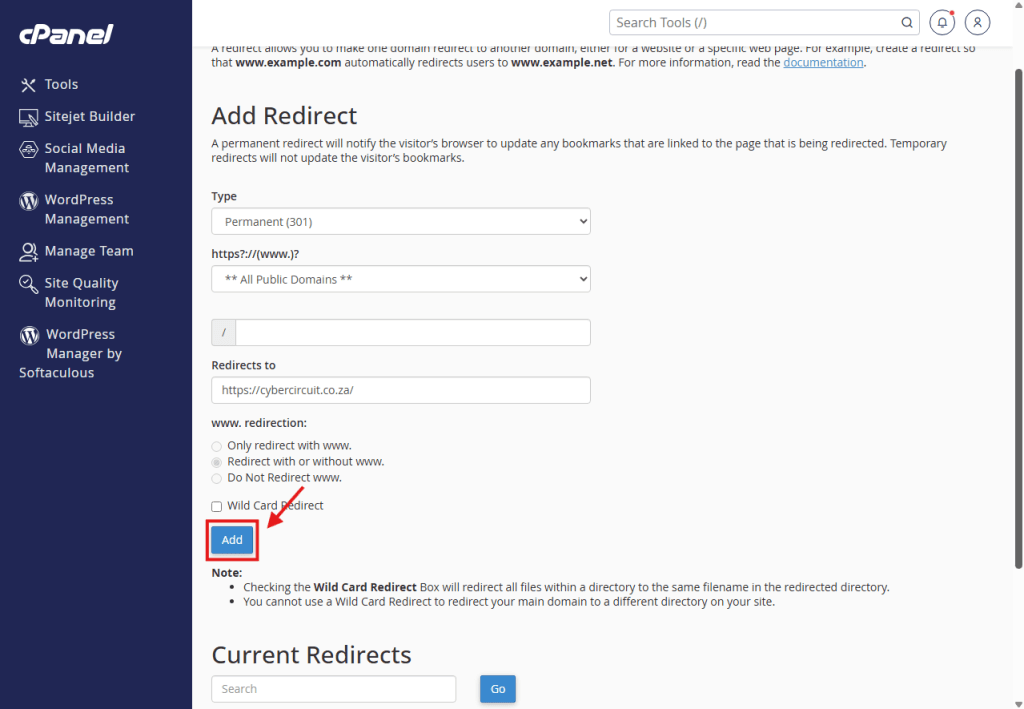
Want to forward visitors from one domain to another? Here is how to set up a Redirect in cPanel.
A Redirect allows you to automatically send visitors to a different website.
Example: You buy my-new-domain.co.za and want it to automatically take visitors to your existing website my-business.co.za.
⚠️ Before You Start (Crucial Step!)
You cannot redirect a domain unless it is added to your cPanel account first.
Register the new domain.
Add it to cPanel: Follow our guide on How to Add a Domain to cPanel.
Once the domain appears in your cPanel list, follow the steps below to set up the redirect.
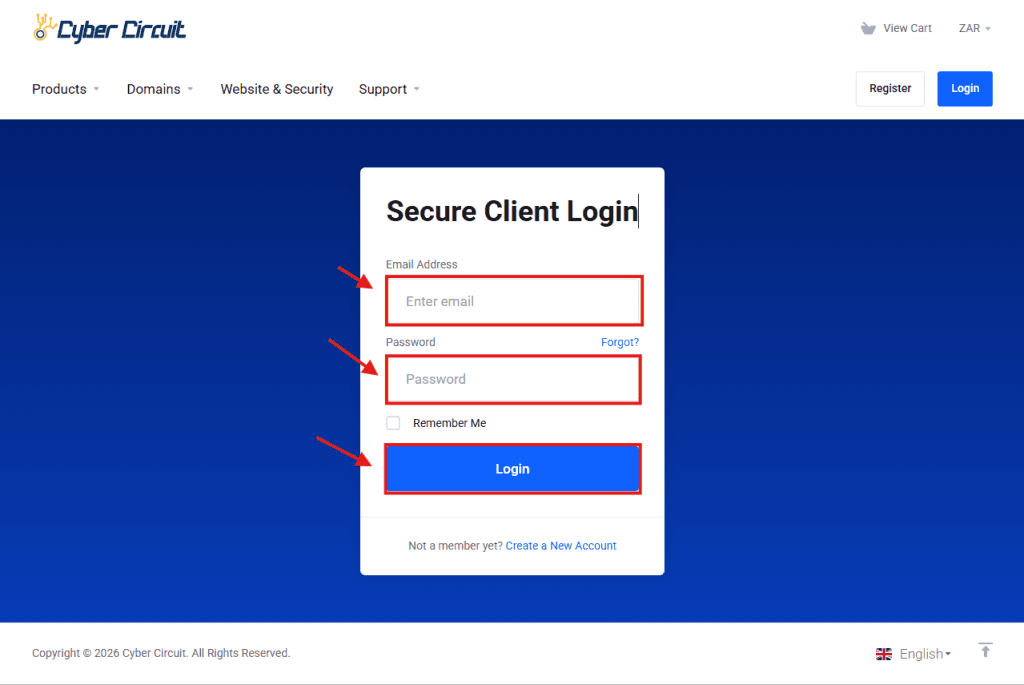
Step 1: Log Into Your Client Area
Go to the Cyber Circuit client area login page (https://cybercircuit.co.za/billing).
Log in using your email address and password.
Step 2: Log Into cPanel
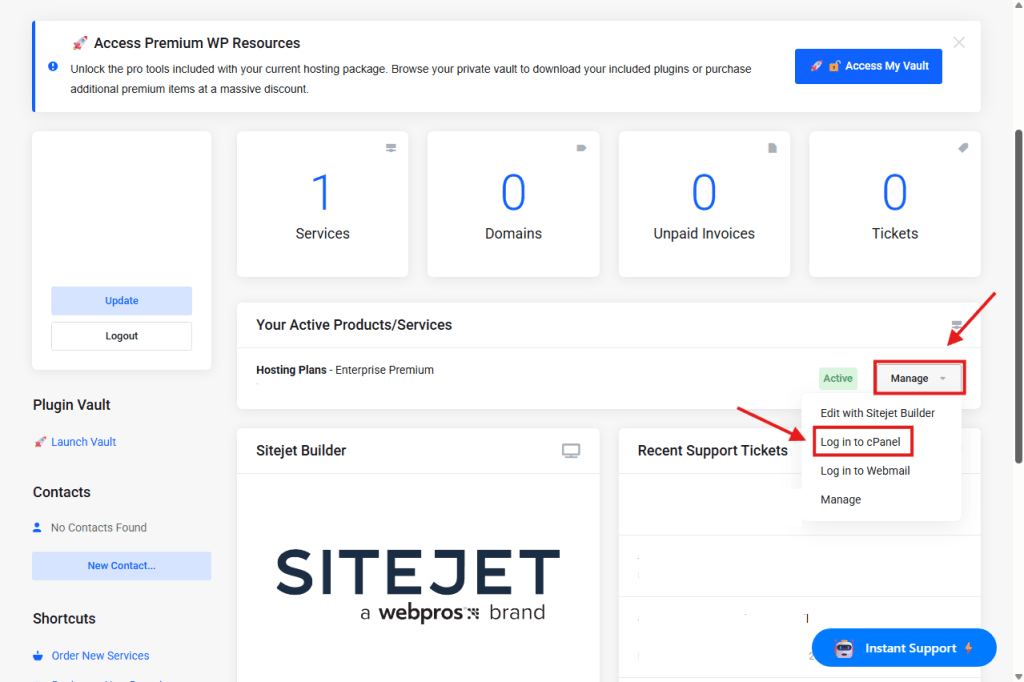
From your Client Area Dashboard, look for your active Products/Services.
Click the Manage button (or dropdown).
Select Log in to cPanel.
Step 3: Open "Redirects"
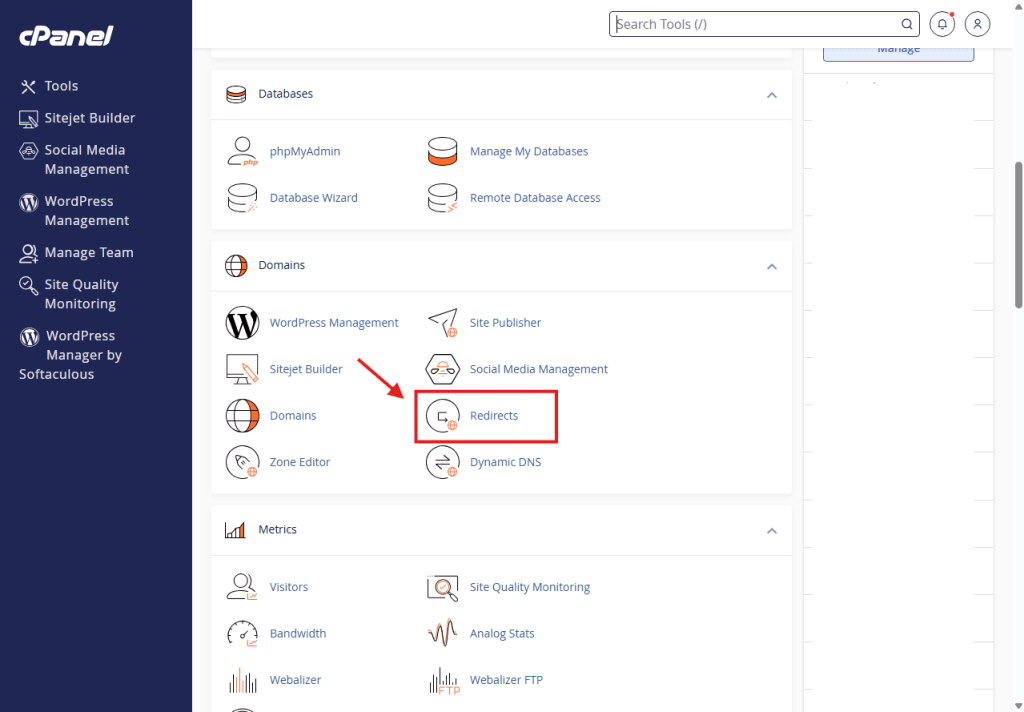
Scroll down to the Domains section.
Click on the icon labeled Redirects.
Step 4: Configure the Source (The "Old" Domain)
You will see a section titled Add Redirect.
Type: Leave this as Permanent (301).
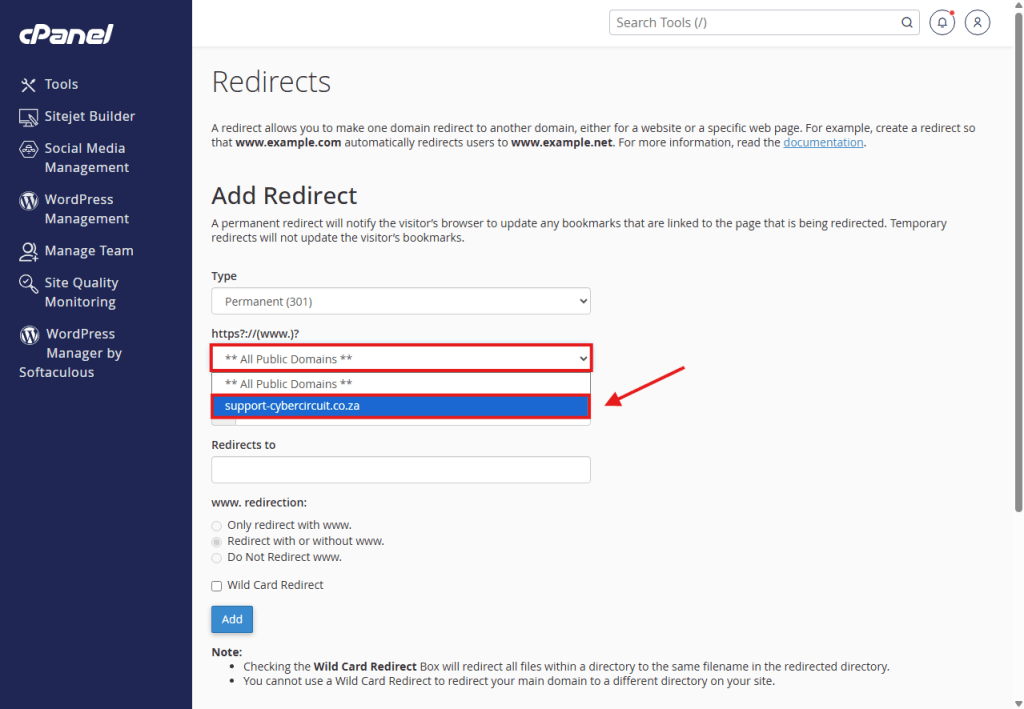
https?://(www.)?: Click this dropdown menu and select the domain you want to redirect (e.g., old-domain.co.za).
⚠️ Important: Do not select “** All Public Domains **”. You must select the specific domain you want to forward.
“/” (Path): Leave this blank to redirect the entire website.
Step 5: Configure the Destination (The "New" Website)
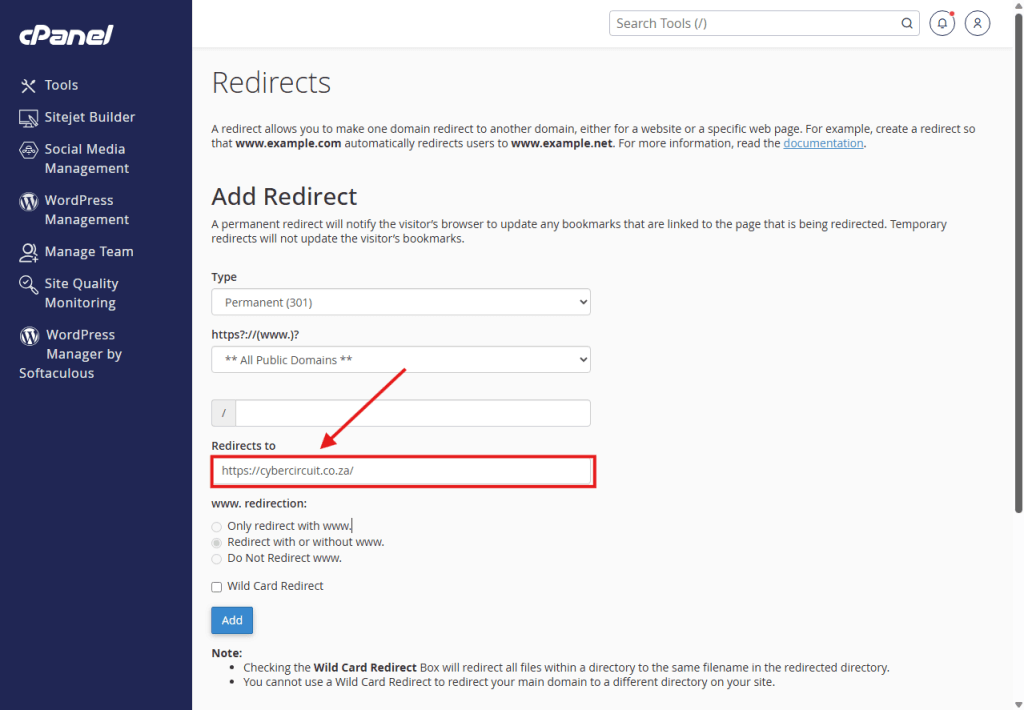
Redirects to: Type the full URL of the website you want visitors to see.
Example: https://new-website.co.za
Note: You must include the https:// part.
Step 6: "www." Settings
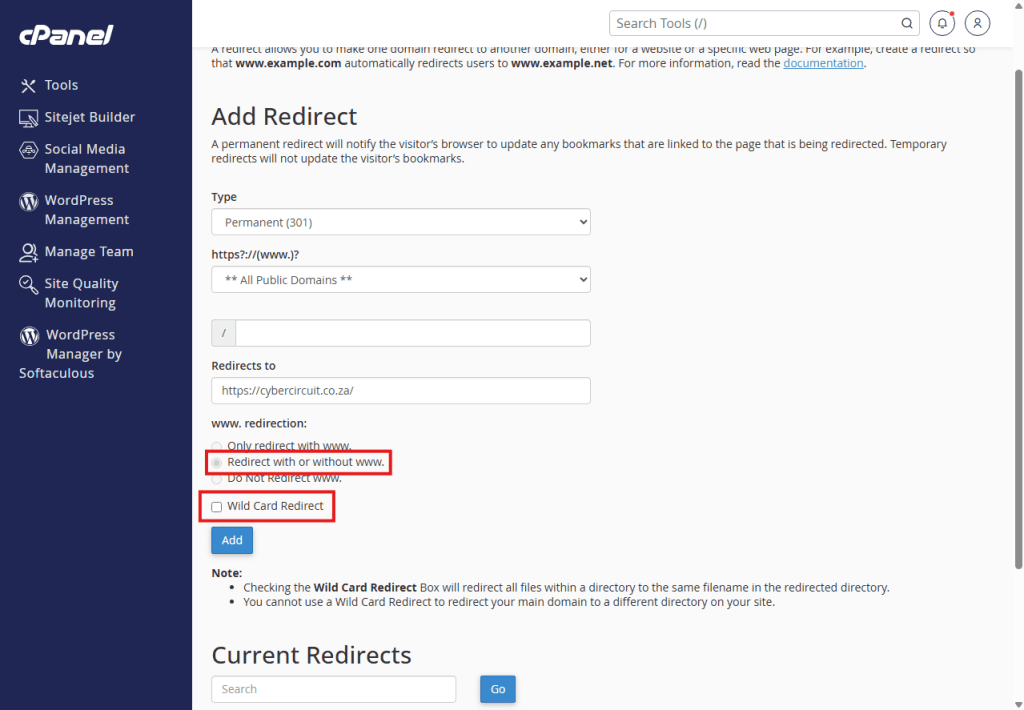
Select “Redirect with or without www.”
This ensures it works whether people type www.old-domain.co.za or just old-domain.co.za.
Leave “Wildcard Redirect” unchecked.
Step 7: Add and Test
Click the blue Add button.
You will see a success message.
Test it: Open a new browser tab (Incognito mode is best) and type in the old domain. It should instantly jump to the new one!