You don’t need complex FTP software to upload your website. You can move files directly to our server using the cPanel File Manager.
If you have your website files ready on your computer (usually as a .zip file), follow these steps to upload them to the internet.
Step 1: Log Into Your Client Area
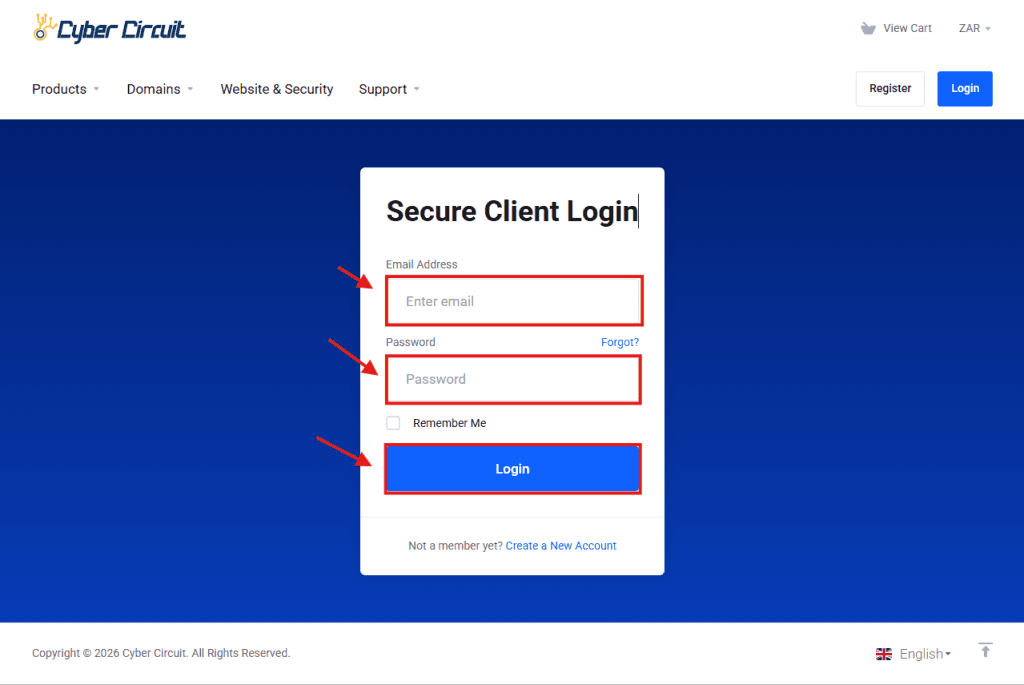
Go to the Cyber Circuit client area login page (https://cybercircuit.co.za/billing/).
Log in using your email address and password.
Step 2: Log Into cPanel
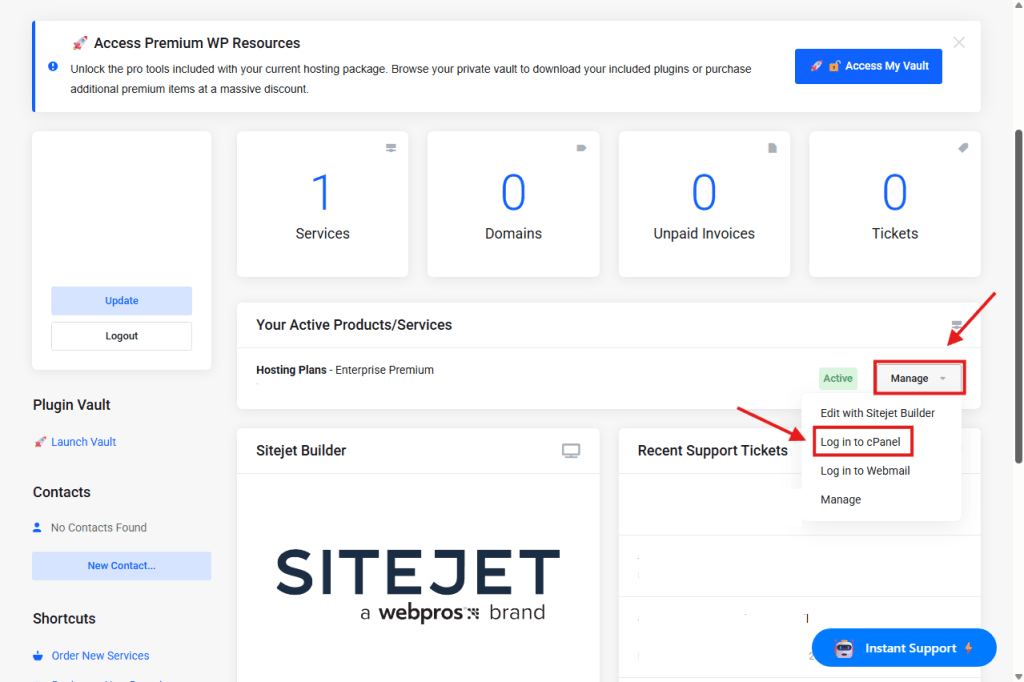
From your Client Area Dashboard, look for your active Products/Services.
Click the Manage button (or the dropdown arrow) next to your hosting package.
Select Log in to cPanel from the menu.
Step 3: Open the Domains Manager
We need to find the specific folder where your website lives.
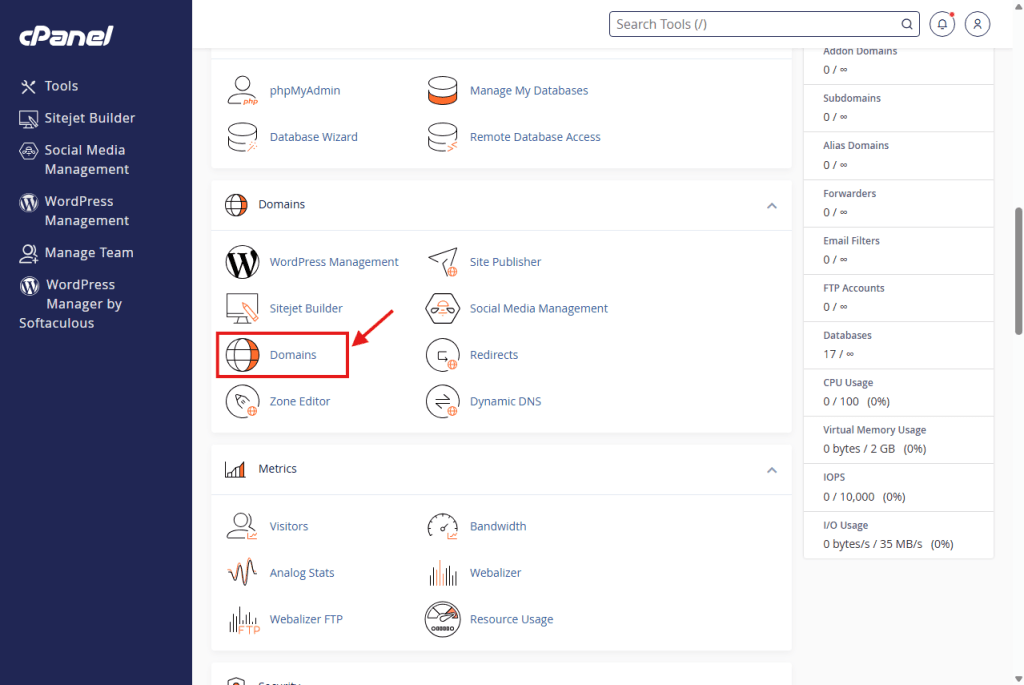
In the cPanel dashboard, scroll down to the Domains section.
Click on the Domains icon.
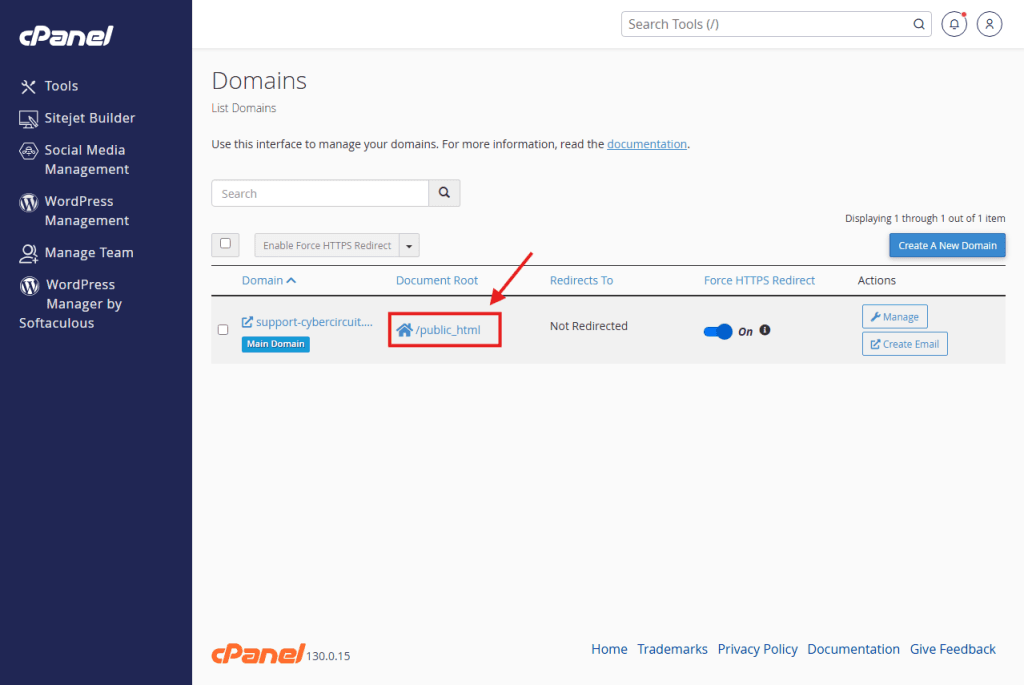
Step 4: Click Your Document Root
Look at the column labeled Document Root.
Note: Your main domain is usually /public_html, while addon domains usually have their own folder.
Click the House Icon or the blue link in that column (e.g., /public_html).
This is a shortcut that opens the File Manager directly inside the correct folder.
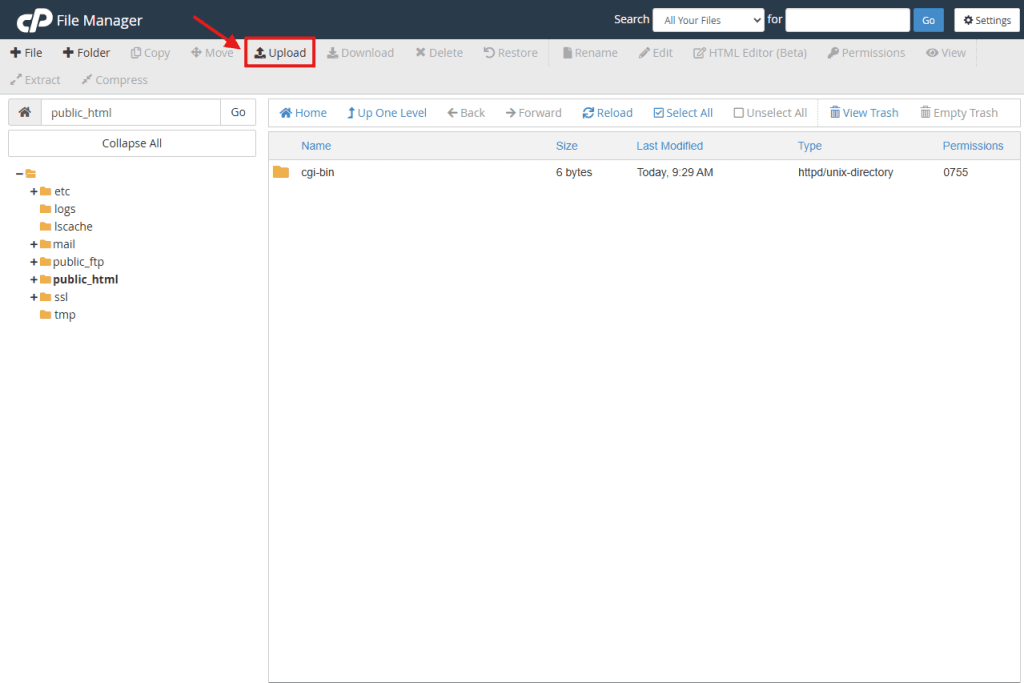
Step 5: Click Upload
The File Manager will open.
Click the Upload button in the top menu bar.
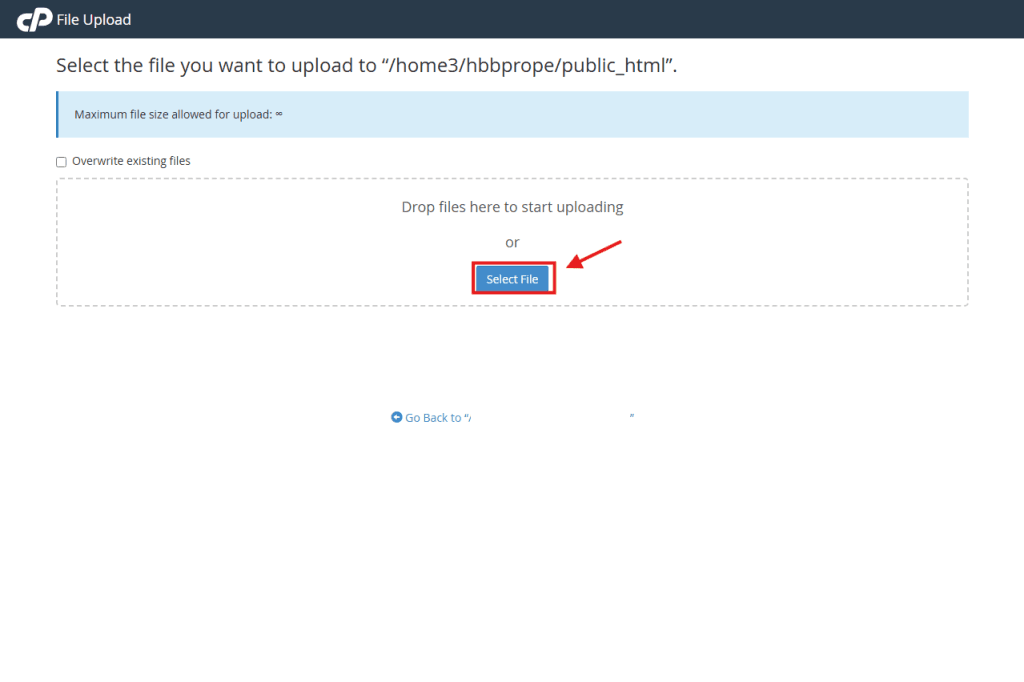
Step 6: Select Your Zip File
A new tab will open.
Click the Select File button (or drag and drop your file).
Tip: It is much faster to upload one single .zip file containing all your website data, rather than hundreds of individual files.
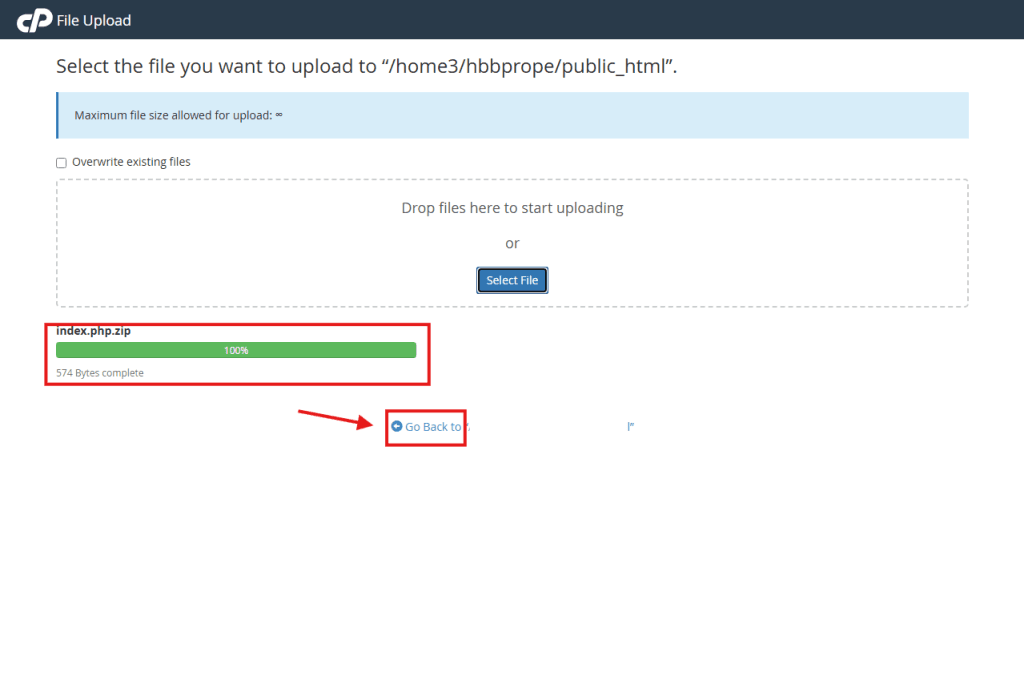
Step 7: Wait for Green, Then Go Back
Wait for the progress bar to reach 100% and turn Green.
Click the link at the bottom that says “Go Back to…”
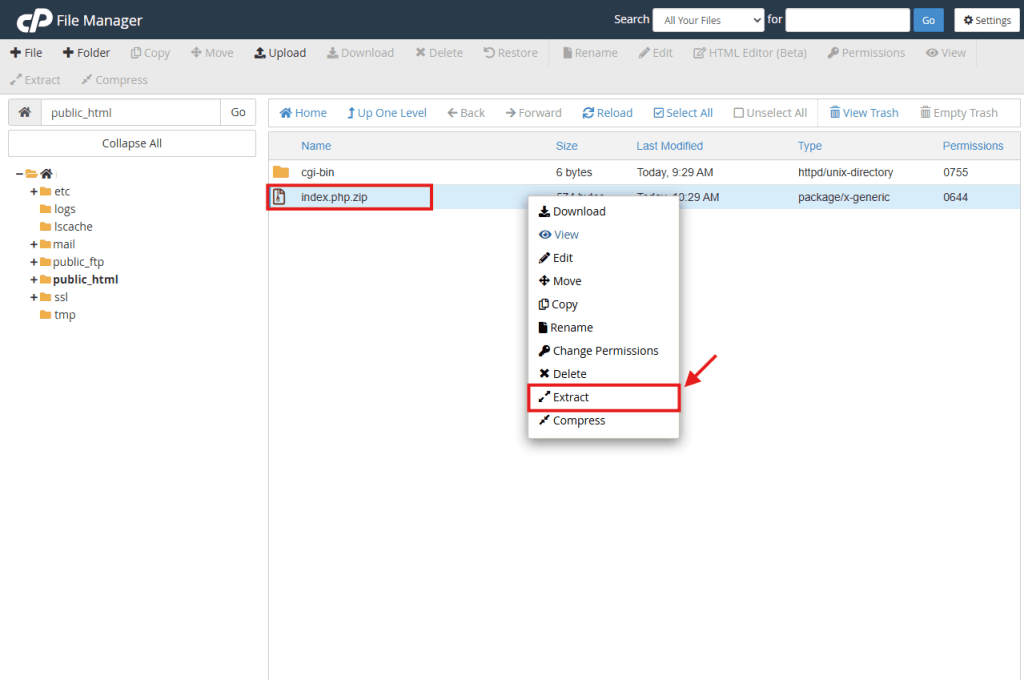
Step 8: Extract Your Zip File
You should now see your .zip file in the folder.
Right-click on the file.
Select Extract from the menu.
Step 9: Confirm Extraction
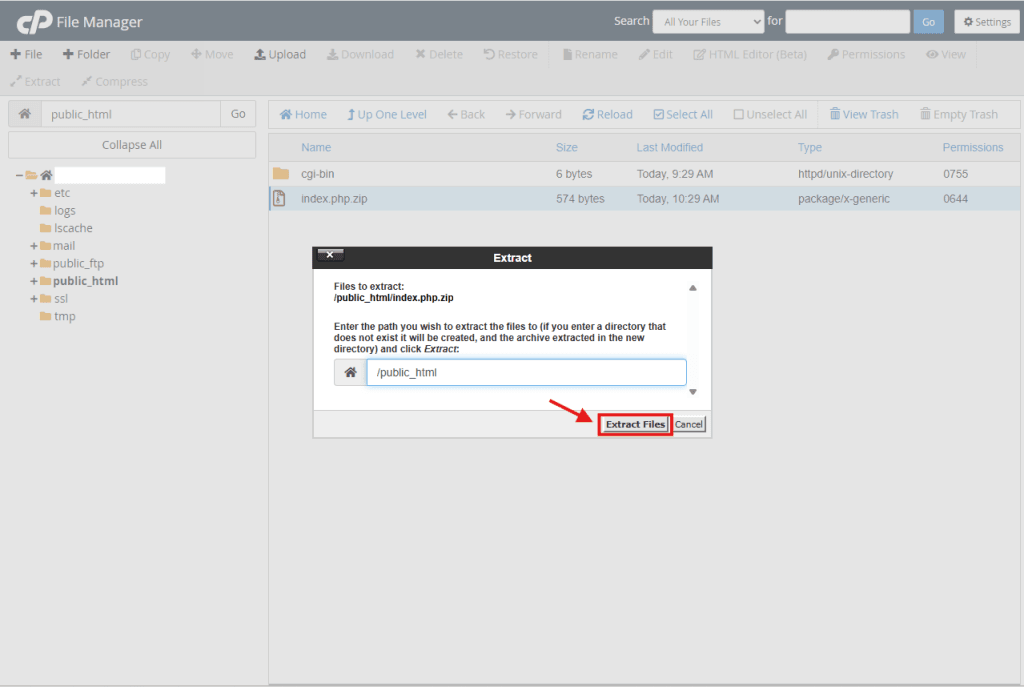
A pop-up window will appear asking where to extract the files.
Do not change the path.
Click the Extract Files button.
Step 10: Close and Check
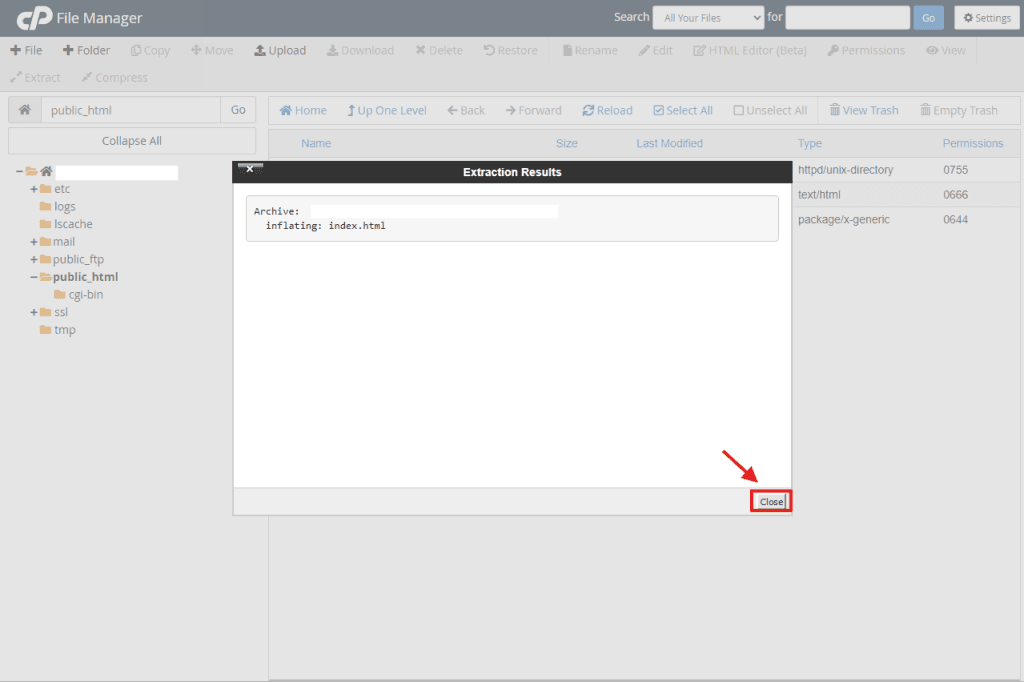
The system will show you a list of the files it just unpacked.
Click Close.
You should now see your website files (like index.php or index.html) listed in the folder. Your site is now live!