All billing for your Cyber Circuit services is managed through your Client Area. This guide shows you how to view invoices and make payments quickly and securely.
Step 1: Log Into Your Client Area
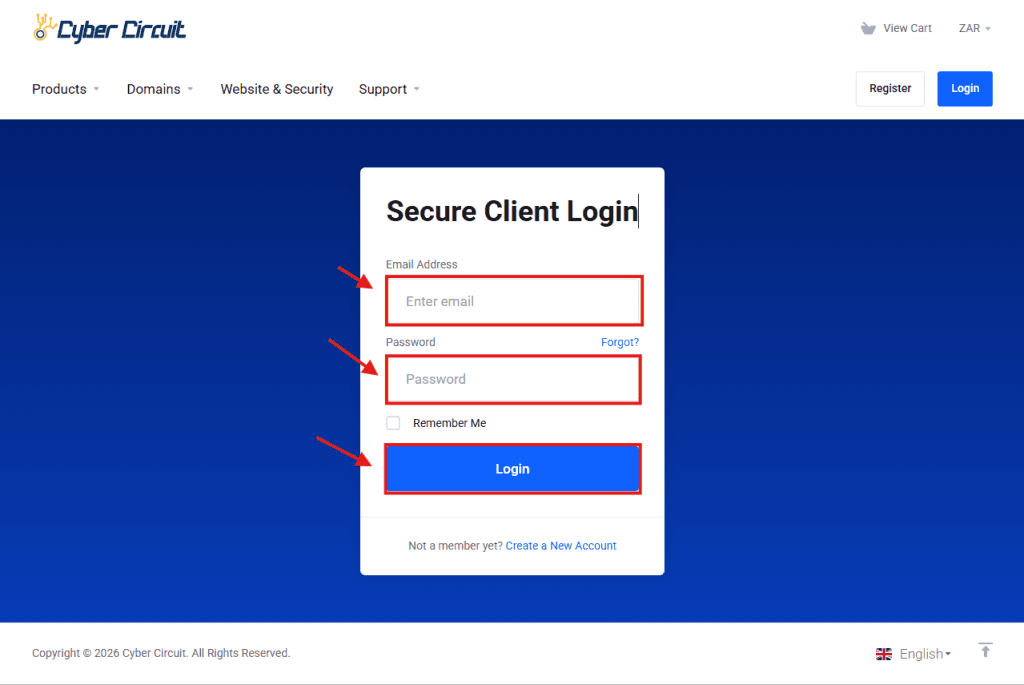
- Go to the Cyber Circuit Client Area.
- Log in using your email address and password.
Step 2: Open Your Invoices
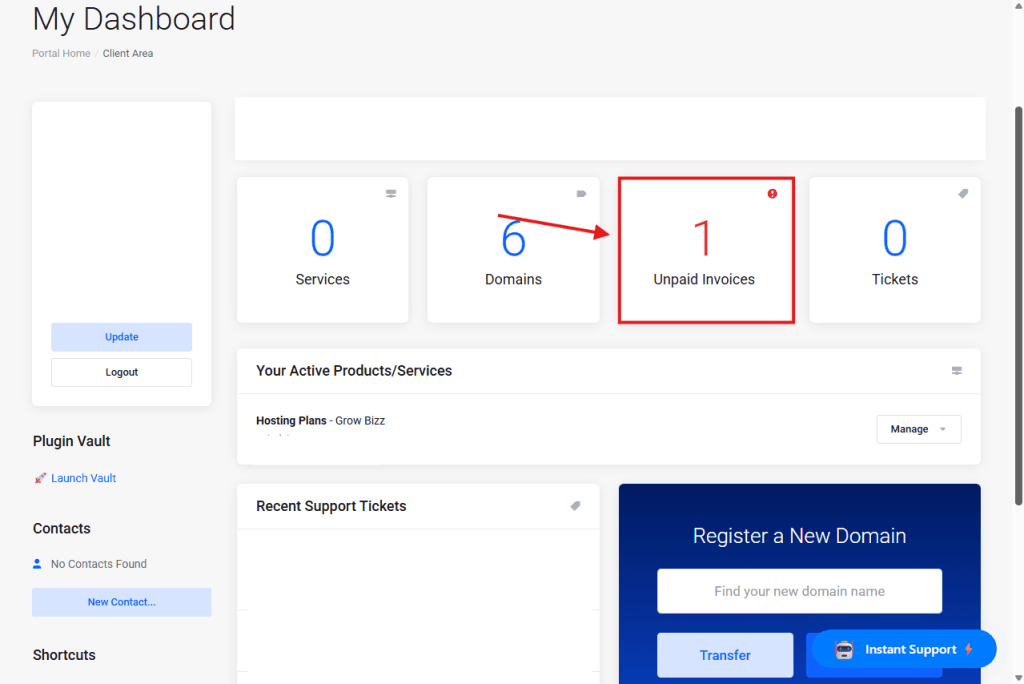
- From the Client Area dashboard, click on the Unpaid Invoices tab.
Step 3: View an Invoice
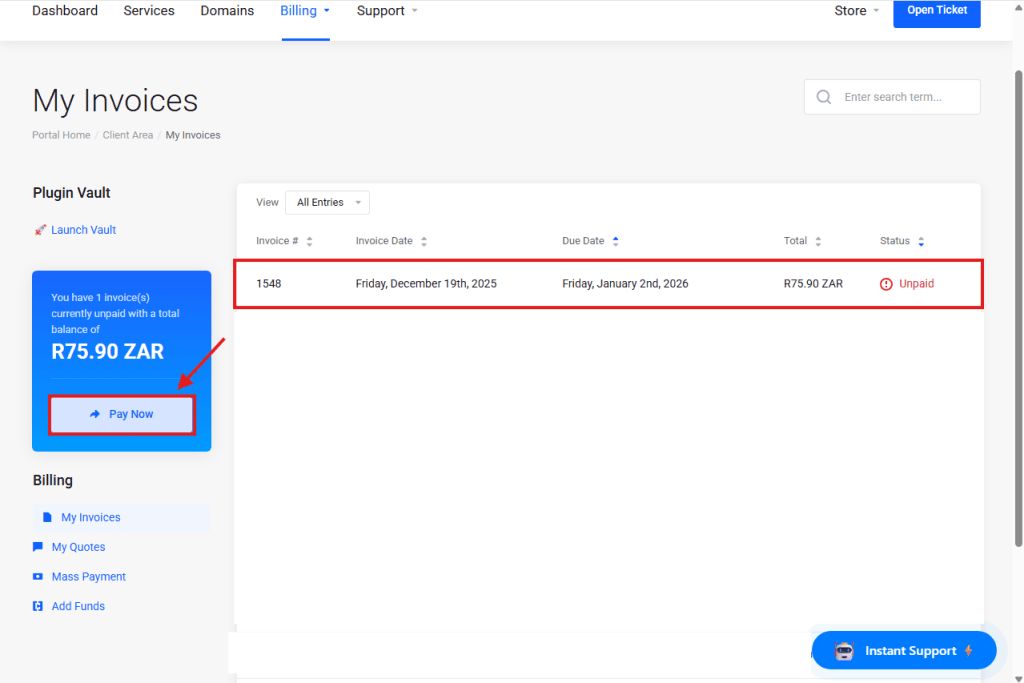
- In the left-hand sidebar, you will see a summary of your unpaid invoices and the total amount due.
- Click the Pay Now button to start the checkout process.
Step 4: Pay an Invoice
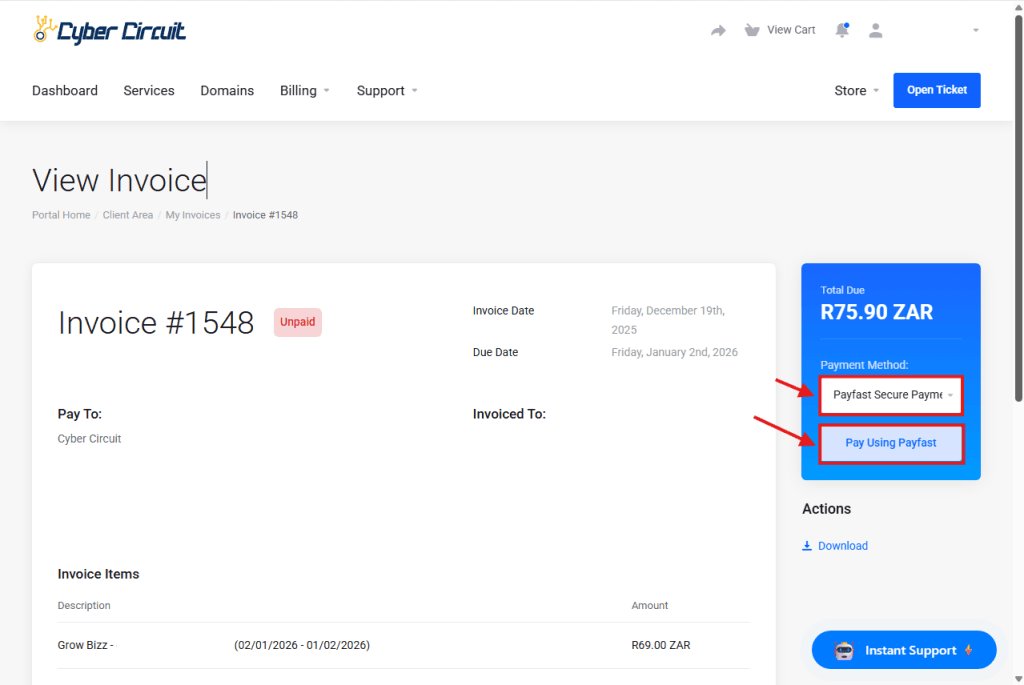
Choose your Payment Method: On the right-hand side of the invoice, use the dropdown menu under Payment Method to select your preferred provider (e.g., Payfast).
Complete the Payment: Click the button below the dropdown (e.g., Pay Using Payfast). This will take you to the secure payment gateway to finish the transaction.
Step 5: Payment Confirmation
- Once payment is successful, the invoice status will change to Paid.
- A payment confirmation email will be sent to you automatically.
✅ You’re all set!
You now know how to view and pay invoices in the Cyber Circuit Client Area.